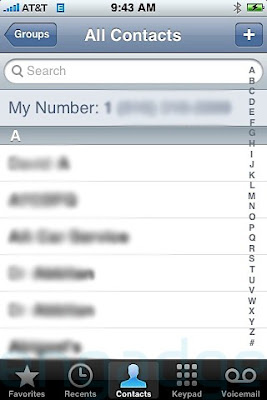
One of the issues I recently ran into was trying to hide certain contact lists from the iPhone's contact manager.
The iPhone does not allow you to 'select' which contact groups to synchronize. It is configured to 'hunt' for contact folders throughout your entire mailbox tree and then makes everything available. For those of you that have thousands of contacts, this solution might work for you.
1) Create a Contacts folder in the Public Folders database of Exchange. You can use Outlook to do this or the Exchange System manager.
2) Change the permissions for the newly created folder so that "Default" and "Anonymous" have no access. Set them to "none". Uncheck "Folder Visible" for Default and Anonymous. You can do this by right clicking on the Public Folder, properties, then permissions. Make sure that you are set as the Owner of the folder.
3) Move the Contact lists that you want to hide from your iPhone into this newly created Contact folder. Since this new folder is located in the "Public Folders" database of the Exchange server, it won't synchronize to your iPhone.
If you set up the permissions correctly, this contact list will be visible only to you, and your iPhone won't see it.
Note that you may have to disable Contacts in your iPhone's Exchange account settings to clear the contacts, and then re-enable it to refresh it.
Good luck.
Please leave me comments. Let me know if this worked for you, or if you notice something that needs to be changed. Use the Tell&Share icon under the title of the post to share it with your friends or digg it!


